Enroll your Security Engine in CrowdSec Console
The CrowdSec Console is a web interface providing management and extra features for CrowdSec Products.
For Security Engine users, the Console offers:
- A centralized view of your security posture across all your machines.
- The ability to manage additional blocklists
- And many quality of life and advanced features to enhance your protection.
The following guide assumes you have successfully installed one or more CrowdSec Security Engines.
If not, start with one of these guides:
Sign Up
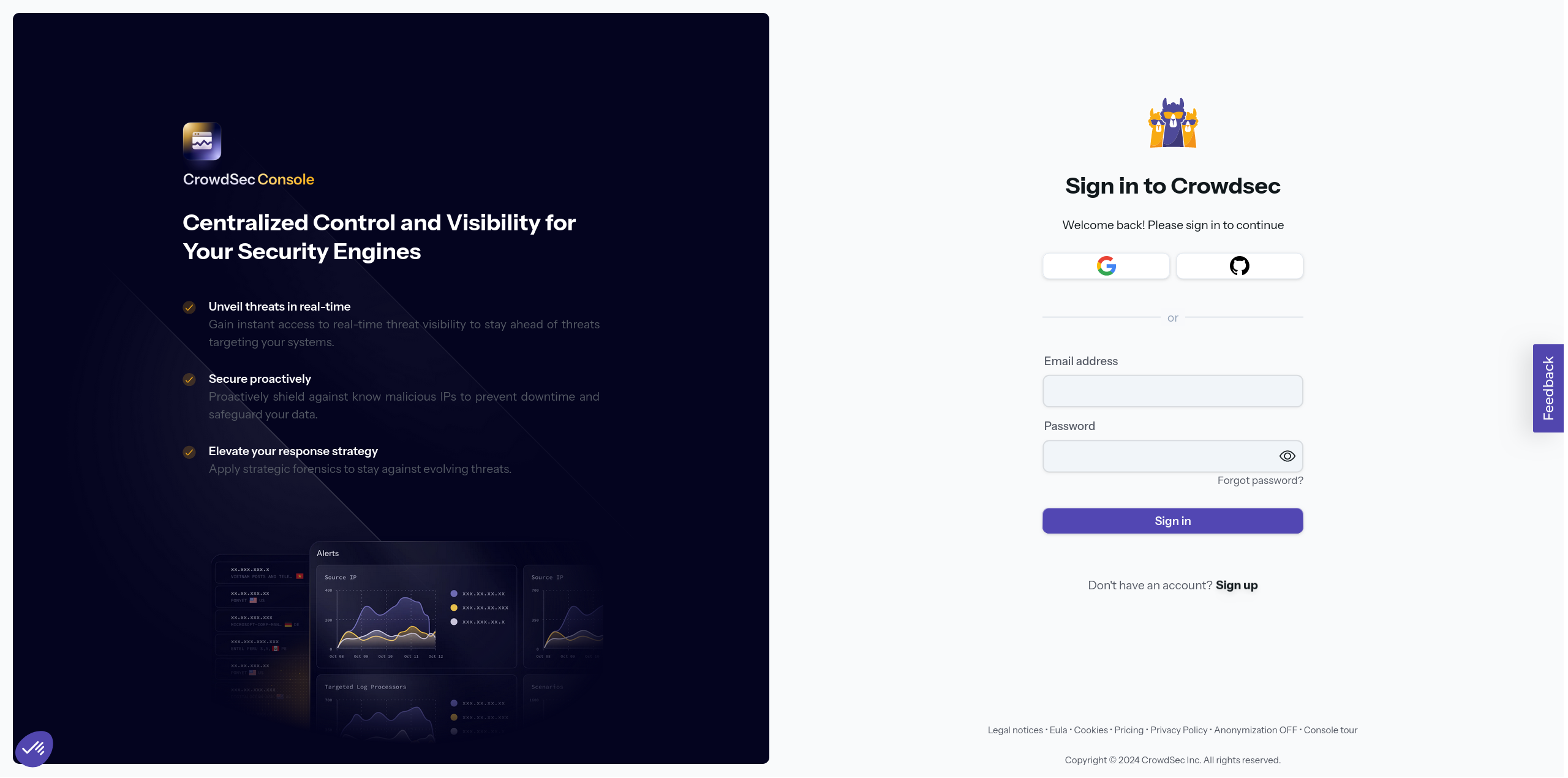
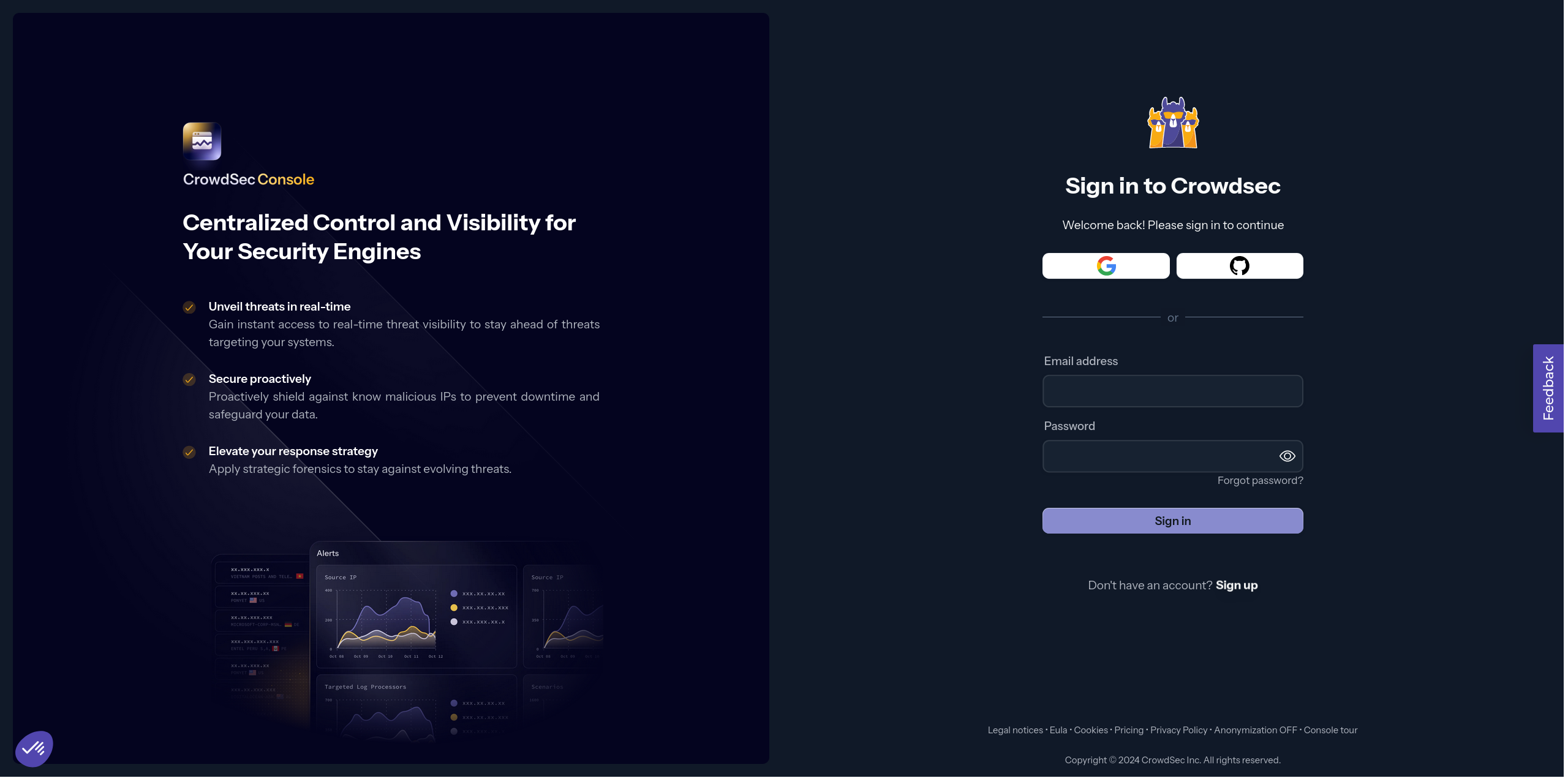
Head over to the CrowdSec Console ↗️ and sign up for a new account.
Email Authentication
If you have chosen to sign up with email and password, you will receive a verification email. Click the link or enter the code to verify your account
Survey
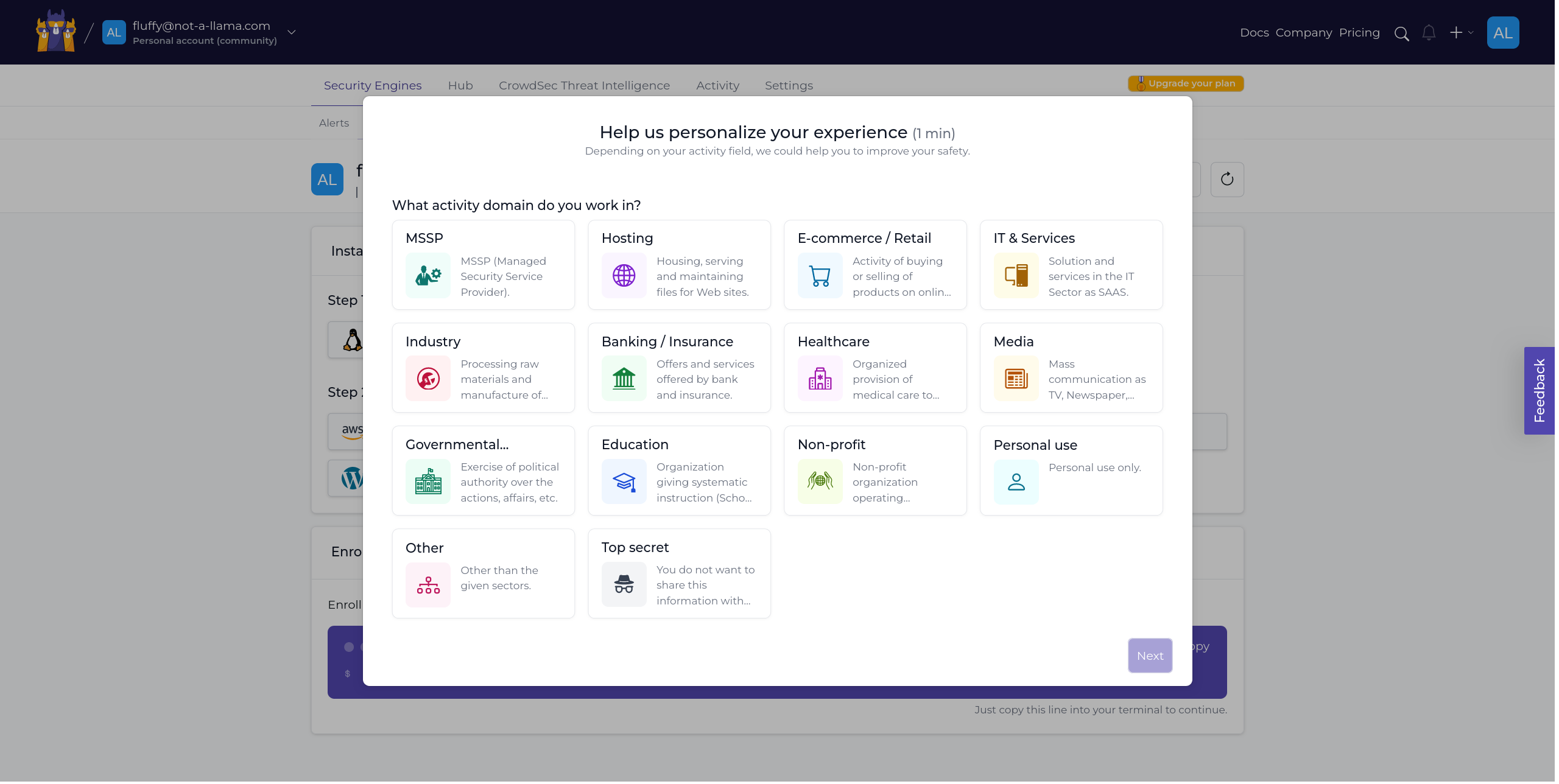
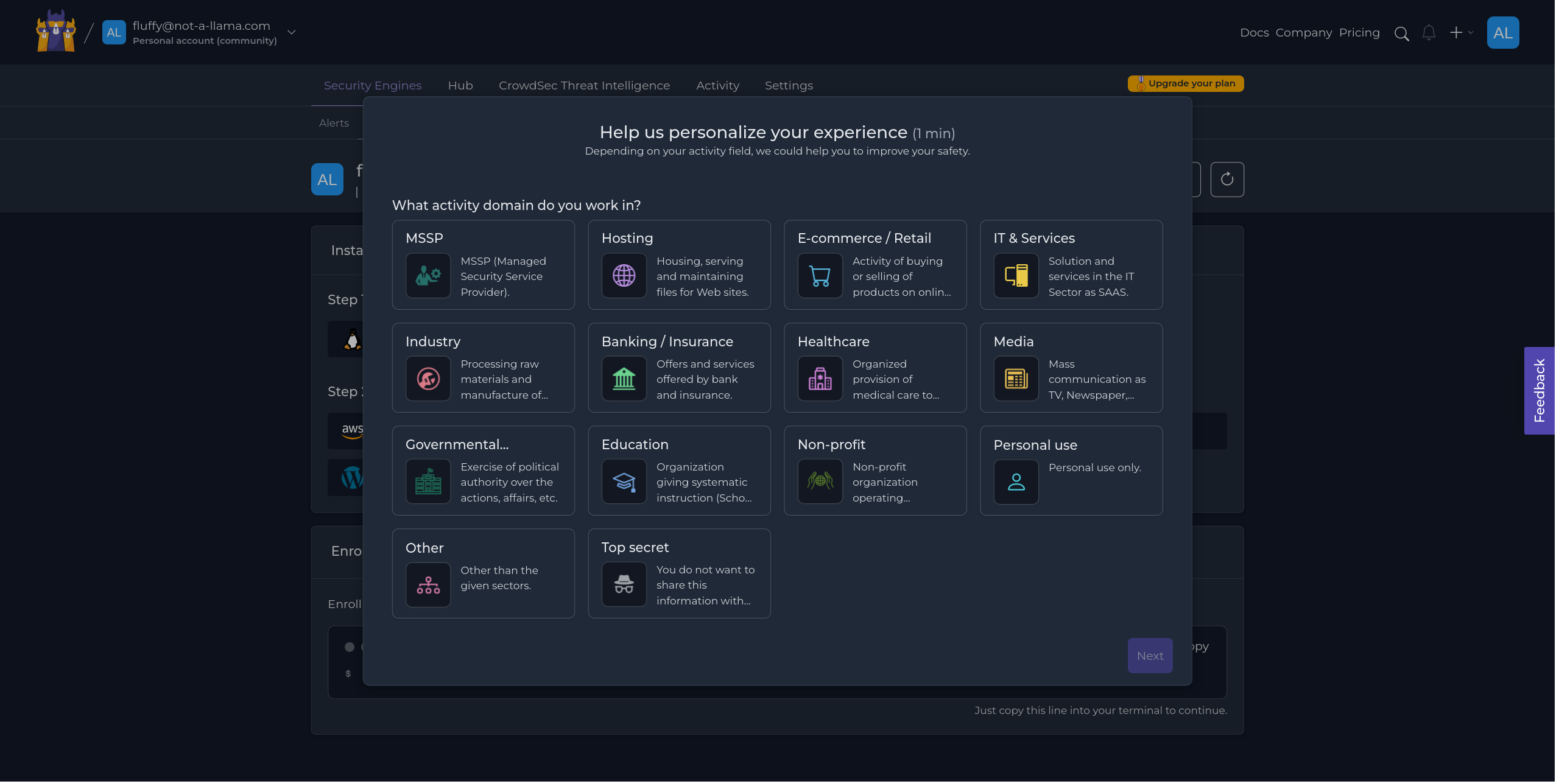
When you log in for the first time, we ask a few questions to understand your use case.
Engines page
After signing up, the first page you see is the engines page, where you can view enrolled engines and their status.
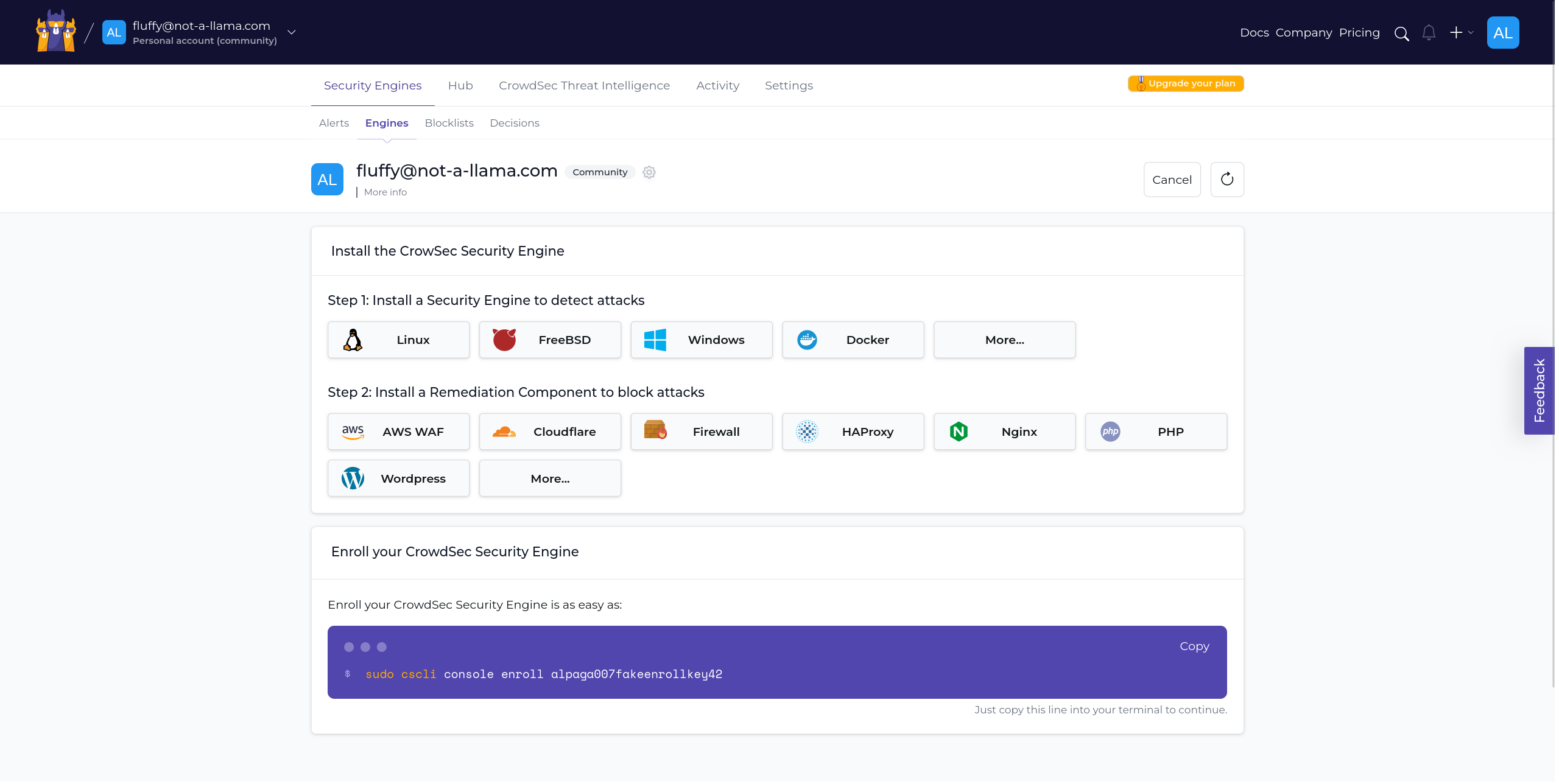
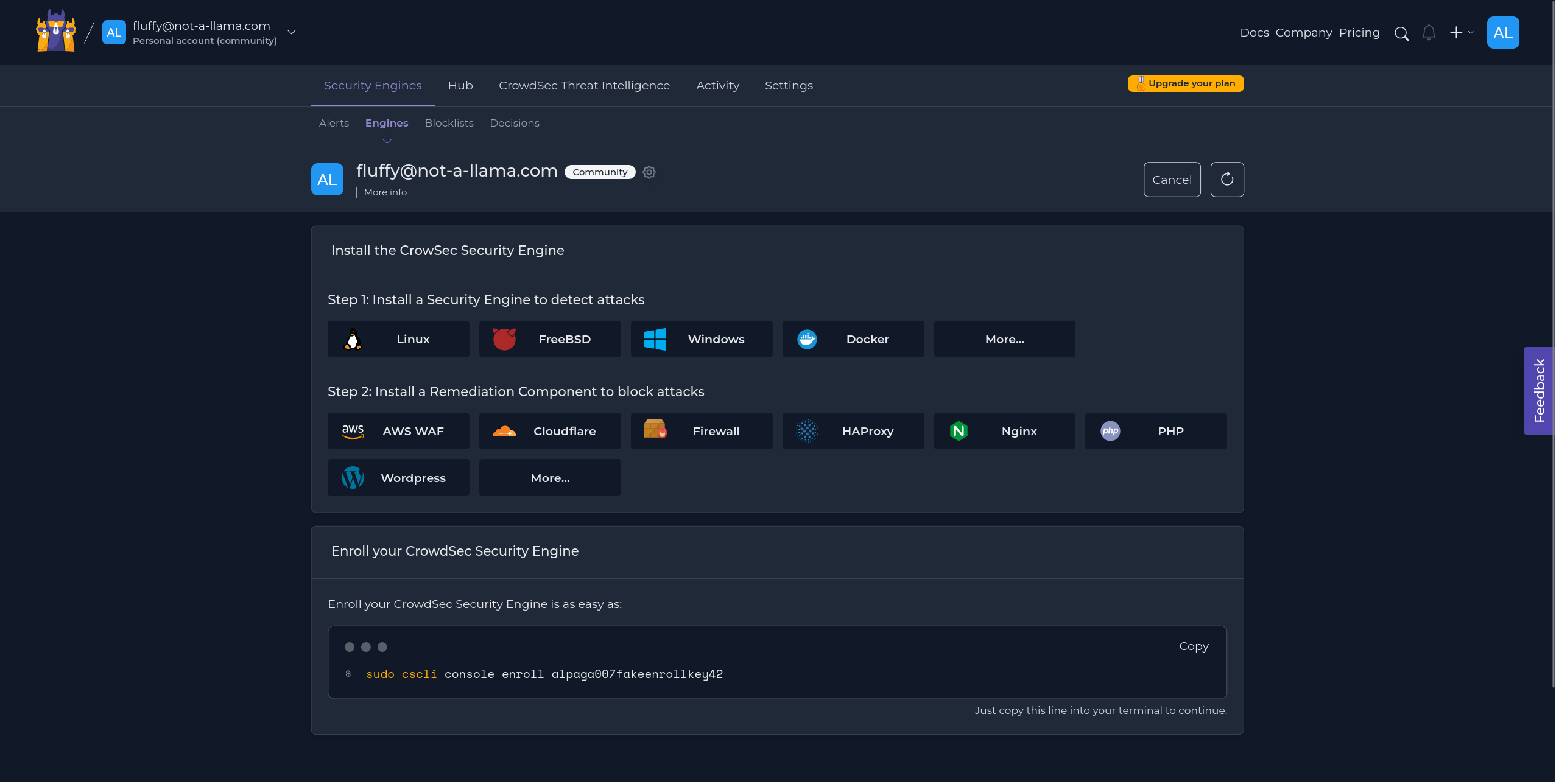
Since this is your first enrollment, you will not see any engines yet. Let's enroll one.
At the bottom of the page, you will see a code card with a command to run on your engine. This enrolls it to your account.
- Linux/Freebsd
- Windows
- Kubernetes
sudo cscli console enroll $ENROLLMENT_KEY
cscli.exe console enroll $ENROLLMENT_KEY
# In your values.yml file
lapi:
env:
  # To enroll the Security Engine to the console
  - name: ENROLL_KEY
    value: '{enroll-key}'
  - name: ENROLL_INSTANCE_NAME
    value: 'my-k8s-cluster'
  - name: ENROLL_TAGS
    value: 'k8s linux test'
INFO[2024-02-21T16:50:17Z] manual set to true
INFO[2024-02-21T16:50:17Z] Enabled manual : Forward manual decisions to the console
INFO[2024-02-21T16:50:17Z] Enabled tainted : Forward alerts from tainted scenarios to the console
INFO[2024-02-21T16:50:17Z] Watcher successfully enrolled. Visit https://app.crowdsec.net to accept it.
INFO[2024-02-21T16:50:17Z] Please restart crowdsec after accepting the enrollment.
Accept enrollment
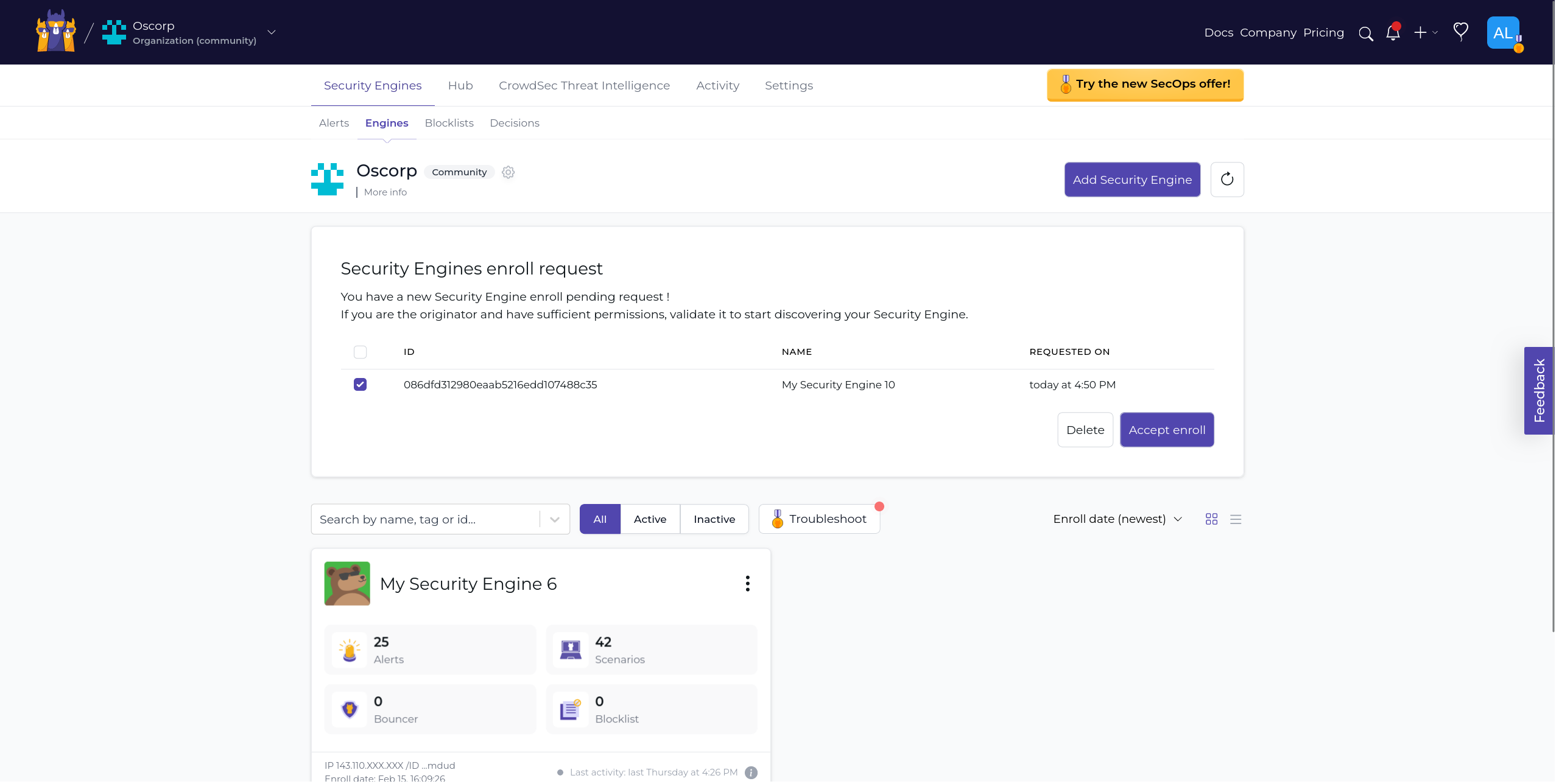
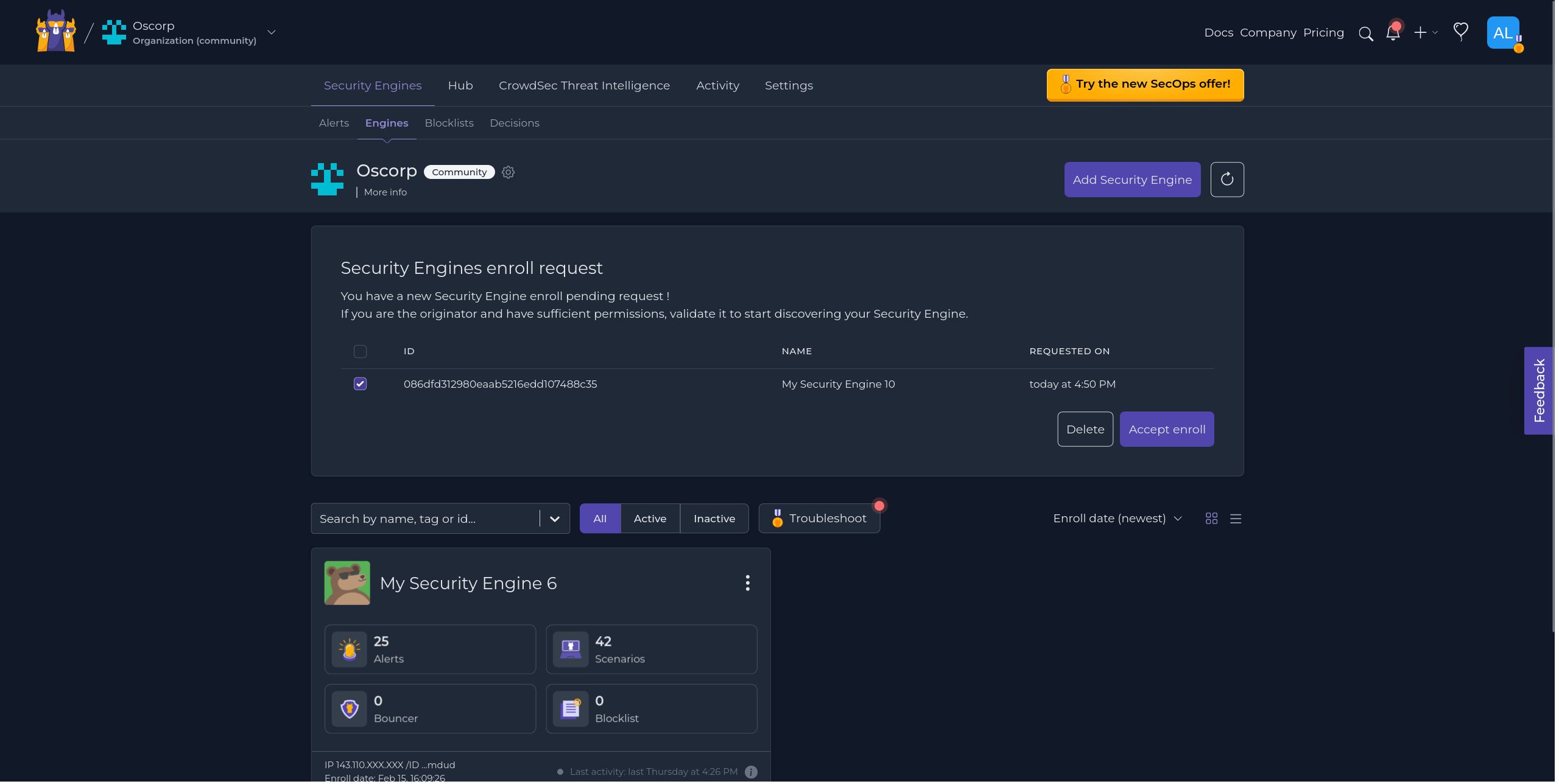
Once you execute the command, a new engine appears on the engines page. Select it and click "Accept enroll."
Restart CrowdSec
After accepting the enrollment, restart the CrowdSec service.
- Linux/Freebsd
- Windows
- Kubernetes
sudo systemctl restart crowdsec
Restart-Service crowdsec
kubectl delete pod -n crowdsec crowdsec-lapi-*
Next steps
Now that your first engine is enrolled, explore the Console features:
If you want to follow the full setup, return to the post-installation steps.